
Help/Reports & tax
Schedule E reports
Updated July 27, 2026·1 min read
Steps
1. Open Reports
Web: sidebar → Reports. Mobile: drawer → Reports.
2. Set filters
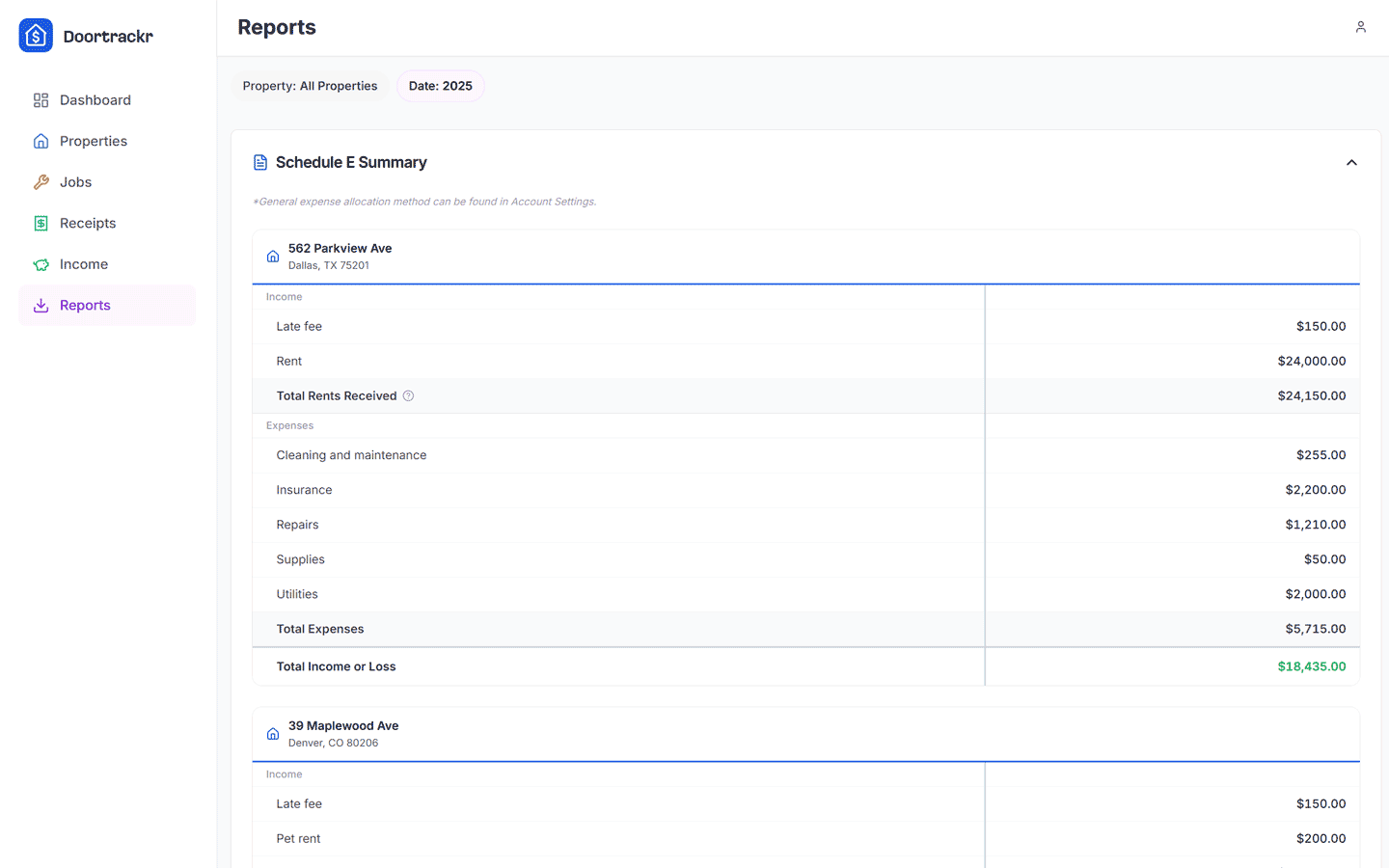
Choose current year, previous year, all time, or a custom range. Multi-select properties as needed.
3. Review tables
Per-property Schedule E style tables show income by category, Total Rents Received, expenses by Schedule E category, and net. Multi-year views add year columns.
Tips
- Total Rents Received is an IRS line name — it can include more than base rent (late fees, pet rent, other rental income).
- General expenses may allocate across properties — see General expenses.
See also
Still stuck? Email support@doortrackr.com.