
Help/Getting started
Your first property, receipt, and income entry
Updated July 27, 2026·1 min read
This walkthrough gets a new account useful in under ten minutes.
1. Add a property
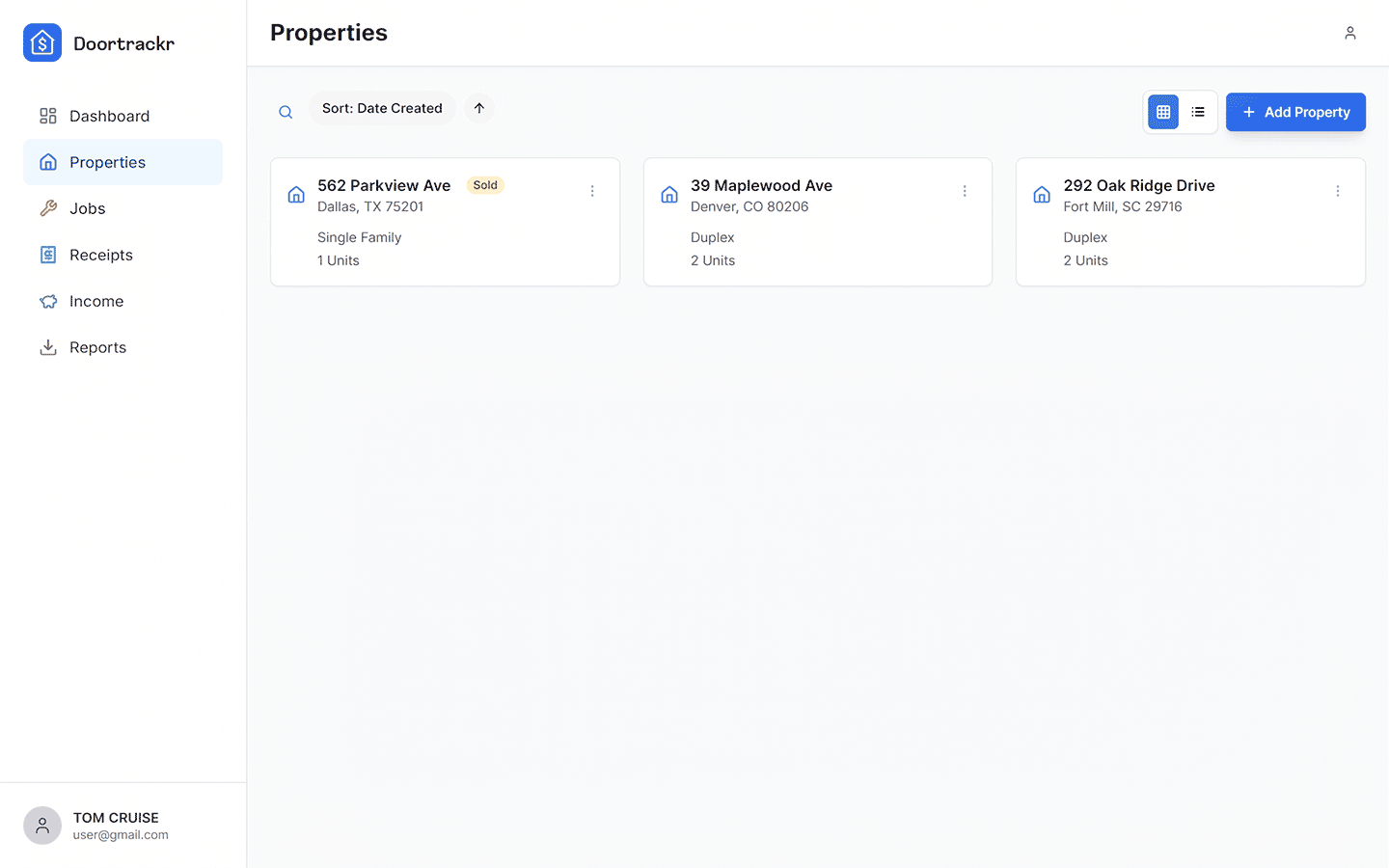
Open Properties → Add property. Enter street address, city, state, ZIP, and property type. Add units if you track income by unit (for example Unit A / Unit B).
2. Log a receipt
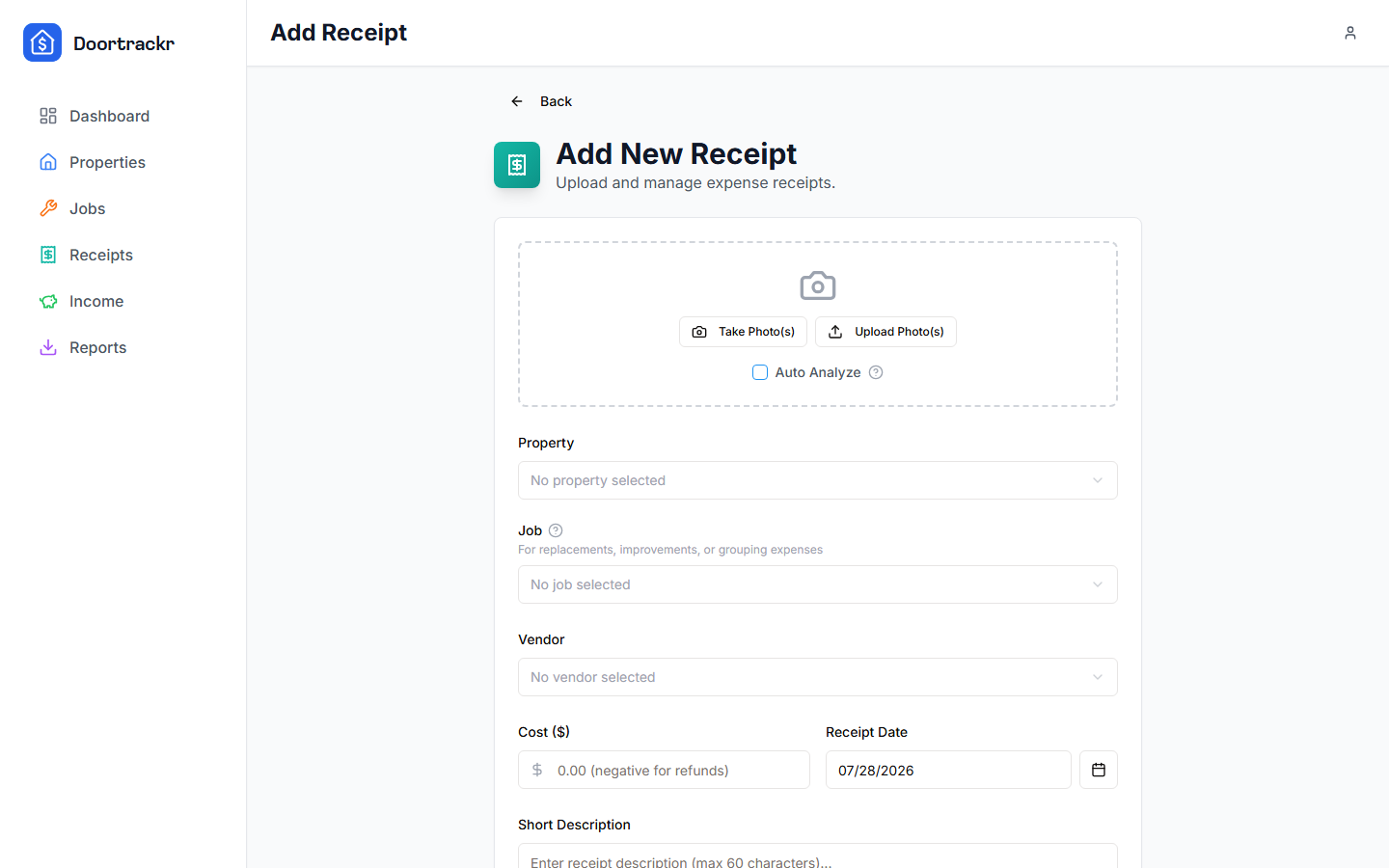
Open Receipts → add a receipt. Attach a photo or PDF if you have one, optionally run Auto Analyze, then set date, amount, vendor, Schedule E category, and property. Save.
3. Log income
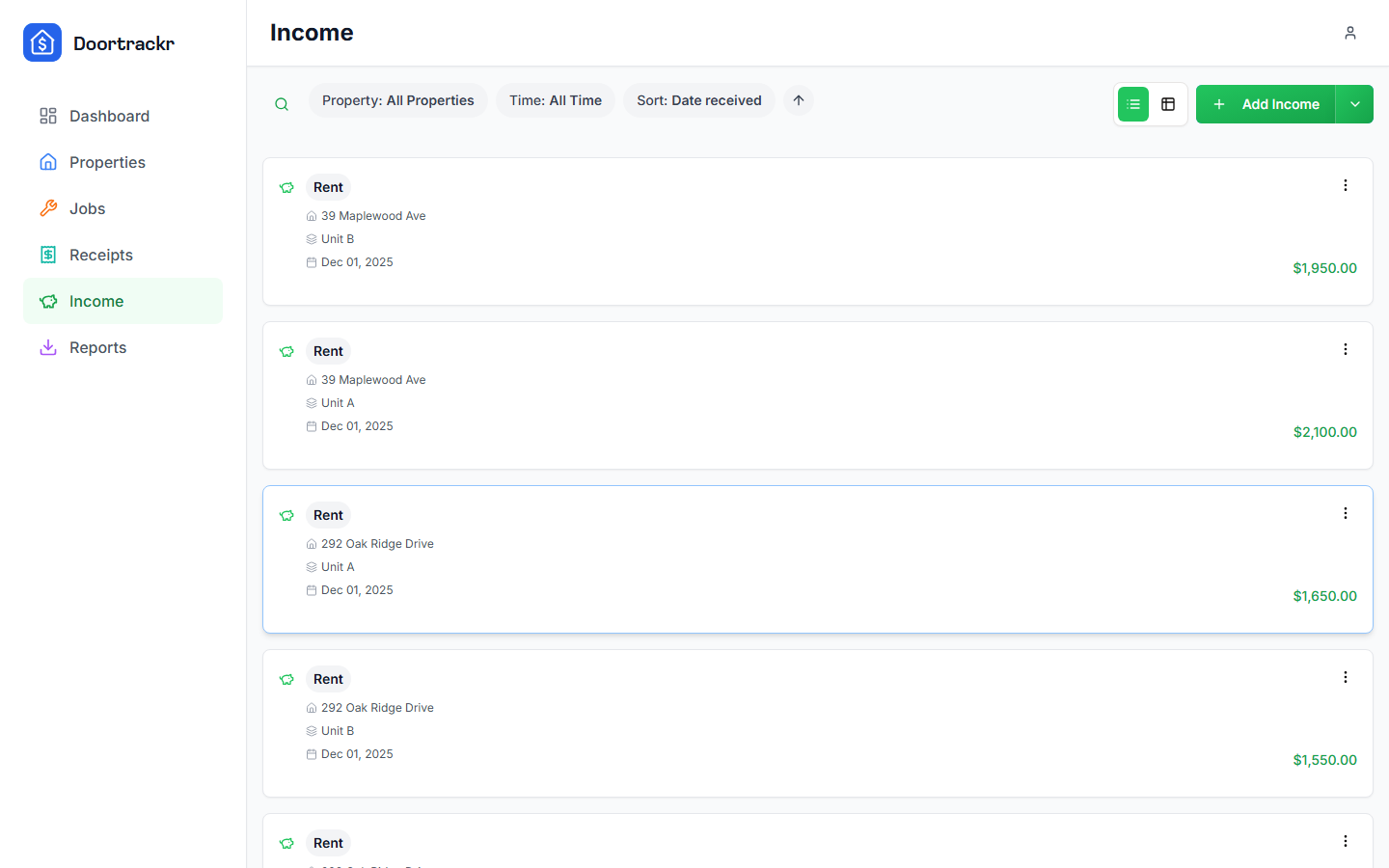
Open Income → add income. Choose a preset category (like Rent), amount, date received, and property/unit. Save.
Check the Dashboard
The Dashboard shows year and lifetime stats plus recent activity. Your new property, receipt, and income should appear in the feed.
On mobile
The same three flows exist as tabs (Properties, Receipts, Income). Use Add on each tab.
Related
See also
Still stuck? Email support@doortrackr.com.